Platform, Security, Workplace
Stop Guessing Your Azure Bill: A Practical Guide to Cloud Cost Control

Platform, Security, Workplace
08/03/2026
Microsoft recently introduced a small but useful improvement for administrators working with multi-tenant applications in Microsoft Entra ID. A new interface in the Entra admin portal now allows you to manage which tenants are allowed to access your application directly from the UI, removing the need to rely on Microsoft Graph API calls. Although this feature isn’t groundbreaking, it simplifies the process of restricting multi-tenant apps to specific organizations. Let’s take a closer look at how it works.
Why tenant restrictions matter
Multi-tenant applications are designed to allow users from different Microsoft Entra tenants to access the same application. While this flexibility is useful for SaaS solutions and partner integrations, there are scenarios where administrators want tighter control over who can access the app.
By restricting access to specific tenants, organizations can:
– Limit application access to trusted partners or customers
– Reduce the risk of unauthorized external tenants connecting to the app
– Improve governance and security for multi-tenant solutions
Until recently, configuring these restrictions typically required using the Microsoft Graph API, which made the process less accessible for administrators who prefer working through the portal.
Where to find the new configuration
The new option can be accessed directly from the Entra admin portal.
Navigate to: Entra ID → App registrations → Select your application → Authentication (Preview)
Inside the Supported accounts section, you’ll find the settings that control which tenants can sign in. If the application is configured as a multi-tenant app, you’ll see an option to restrict access.
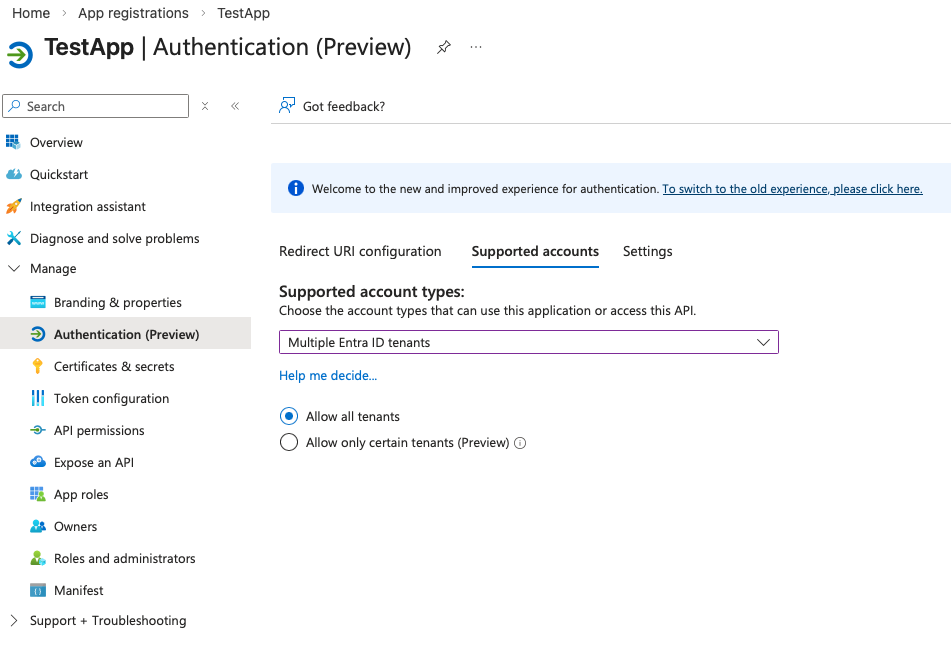
Only allow specific tenants
To limit access to certain organizations:
1. Select Allow only certain tenants (Preview)
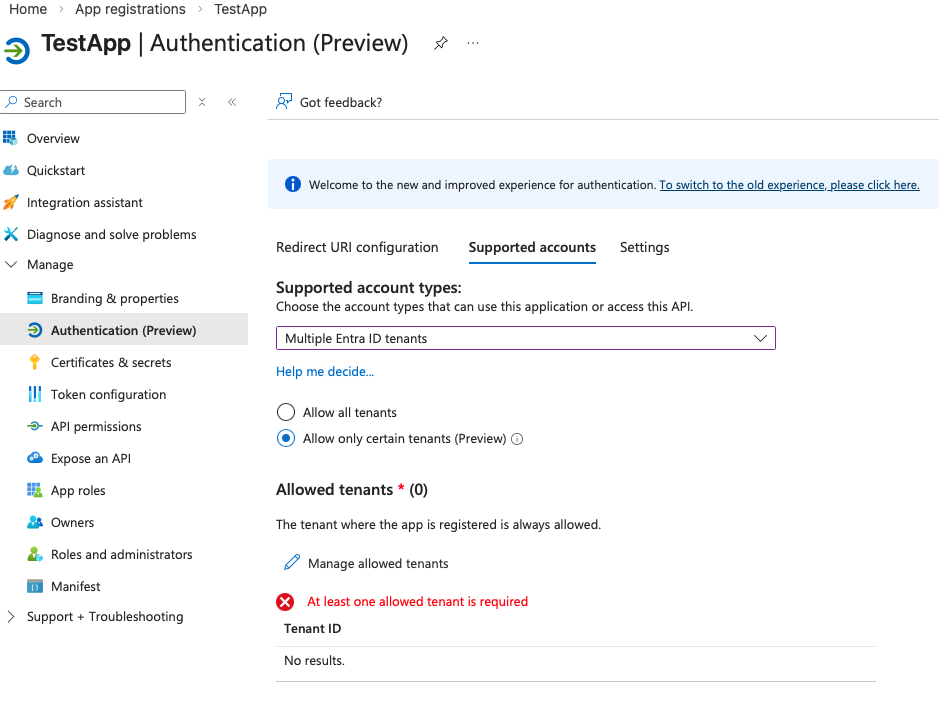
2. Click Manage allowed tenants
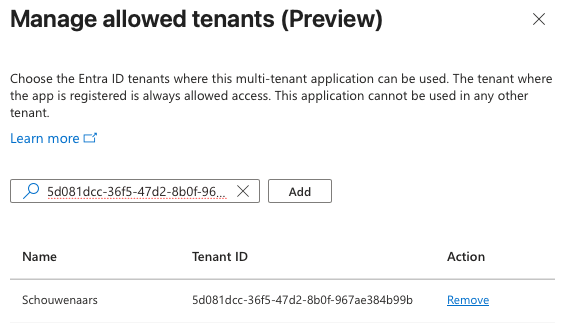
3. Add the tenant identifiers you want to allow
The interface opens a side panel where you can add up to 20 tenants to the allow list. Each tenant can be specified either by:
1. Tenant ID
2. Verified domain name (including the default .onmicrosoft.com domain)
Once added, apply the changes and save the configuration. After saving, the list of allowed tenants will appear under the supported accounts configuration.
Only allow specific tenants
Tenant restrictions only work when the application is configured for multiple Entra ID tenants. In other words, the Supported account types setting must be set to:
Accounts in any organizational directory (AzureADMultipleOrgs)
If you switch the app to a single-tenant configuration, the allowed tenant list will automatically be cleared. The portal displays a warning before this change takes effect to avoid accidental configuration issues.
Final Thoughts
This update may seem small, but it removes friction for administrators who want to secure their multi-tenant Entra ID applications. Instead of relying on scripting or Graph API calls, tenant restrictions can now be managed directly in the portal with a simple interface. For organizations running SaaS apps, partner integrations, or B2B solutions, this makes it easier to control which tenants are allowed to authenticate against your application.
