Platform, Security, Workplace
Stop Guessing Your Azure Bill: A Practical Guide to Cloud Cost Control

Platform, Security, Workplace
08/03/2026
Microsoft has announced the public preview of Automatic Zone Balance for Azure Virtual Machine Scale Sets (VMSS). This new capability is designed to help you maintain zone-resilient workloads with zero manual intervention, significantly reducing the operational overhead of managing highly available applications across Availability Zones.
The challenge of maintaining Zone Balance
When you deploy a Virtual Machine Scale Set across multiple Azure Availability Zones, the platform initially spreads your VM instances as evenly as possible to maximize resiliency. However, over time, this balance can drift. Factors like zone-specific capacity constraints, scaling operations (both manual and autoscale), and instance repairs can lead to an imbalanced scale set, where some zones hold significantly more VM instances than others.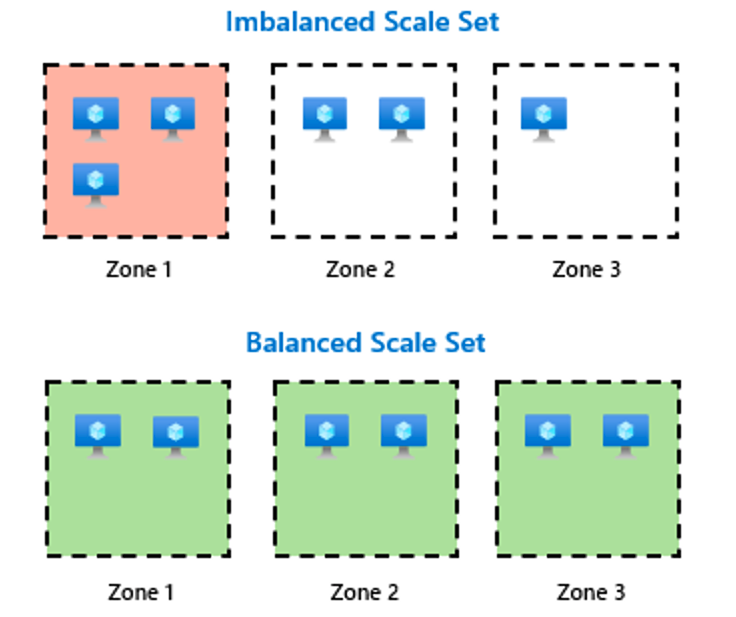
This imbalance often goes unnoticed, but it poses a serious risk. In the event of a single zone failure, an imbalanced scale set could see a disproportionate percentage of your workload fail, impacting application availability far more than expected. For example, an outage in a zone hosting 50% of your instances would cause a 50% impact, whereas a balanced set across three zones would only experience a 33% impact.
How automatic Zone Balance solves this
Automatic Zone Balance addresses this challenge by continuously monitoring your scale set for zonal imbalances. When an imbalance is detected, meaning one zone has at least two fewer instances than another, the feature automatically initiates a rebalancing process to restore equilibrium, all in the background.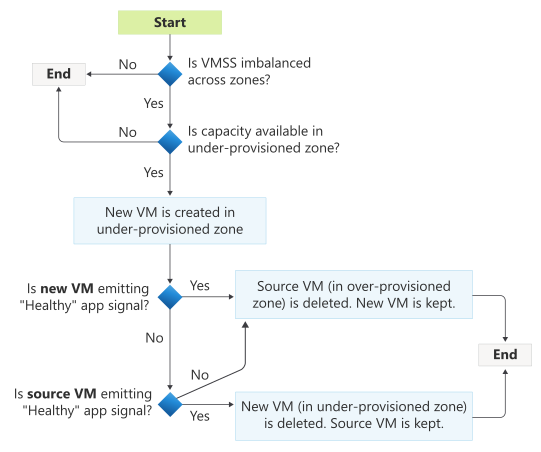
The rebalancing process uses a safe and controlled create-before-delete approach:
1) Detection & Creation: When an imbalance is found, a new VM is created in the most under-provisioned zone (the zone with the fewest instances).
2) Health Verification: The new VM is given time (up to 90 minutes) to report as healthy, using your configured health probes (like Application Health Extension or Load Balancer Health Probes).
3) Safe Removal: Once the new VM is confirmed healthy, a VM is removed from an over-provisioned zone (a zone with the most instances). If the new VM fails to become healthy, the system checks the source VM’s health to decide which unhealthy instance to remove, ensuring your overall healthy instance count is prioritized.
This method ensures your workload capacity is never reduced during the process. The feature also includes built-in safety guardrails:
– It only moves one VM at a time to minimize disruption.
– It respects instance protection policies, never moving protected instances.
– It pauses during active scale set operations (like PUT, PATCH, or recent scaling events) to avoid conflicts.
Built-in integration with automatic instance repairs
When you enable Automatic Zone Balance, Automatic Instance Repairs is also activated by default. This powerful combination gives you both zone-level resiliency (by balancing VMs across zones) and instance-level health monitoring (by automatically replacing unhealthy VMs). Together, they help you maintain resilient, well-distributed workloads with minimal operational overhead.
Important considerations and limitations
As this is a public preview, there are some key points to understand:
1) Best-Effort Operation: Rebalancing may be delayed if a target zone has temporary capacity constraints.
2) Stateless Workloads Recommended: The feature uses delete-and-rebuild operations. Instance IDs, local disks, and certain network configurations are not preserved during rebalancing.
3) SKU Consistency: New VMs are always created using the latest SKU defined in your scale set model. VMs with a different SKU will not retain it after rebalancing.
4) Temporary Capacity Increase: During the create-before-delete process, your scale set’s capacity will temporarily increase by one VM. Ensure your autoscale rules and subscription quota can accommodate this brief spike.
5) Not a Disaster Recovery Tool: This feature is for maintaining balance over time, not for recovering from a zone-wide outage.
How to get started with the preview
Ready to try it out? Follow these steps:
1) Register for the Preview: Enable the AutomaticZoneRebalancing feature flag in your subscription using the Azure portal, CLI, or PowerShell.
2) Ensure Prerequisites:
– Your VM scale set must be deployed across at least two availability zones.
– It must use best-effort zone balancing mode (this is the default for zonal deployments).
– You must have application health monitoring configured (e.g., using Application Health Extension or a load balancer health probe).
3) Enable the Feature: Turn on “Automatic zone balance” through the Azure portal, CLI, PowerShell, or REST API.
For detailed step-by-step instructions and the latest updates, visit the official documentation: Automatic zone balance overview.
