Platform, Security, Workplace
Stop Guessing Your Azure Bill: A Practical Guide to Cloud Cost Control

Platform, Security, Workplace
08/03/2026
If you’ve ever had a user accidentally enroll their personal laptop into full corporate management just by signing into Microsoft Teams, you know the pain. The panic support call. The complex unenrollment process. The frustrated user who now has corporate policies on their home device. Finally Microsoft heard us. A new public preview feature in Microsoft Intune gives administrators the control they’ve been asking for: a simple toggle to prevent automatic MDM enrollment during app sign-in on Windows.
The Problem: One click you can’t take back
For years, the flow has been deceptively simple. A user signs into a work app like Office or Teams on their personal Windows device, and they’re presented with a screen: “Allow my organization to manage my device.” In many environments, this box was checked by default, or users clicked “Allow” just to get to their email. The result? Their personal device became fully managed by corporate IT, subject to compliance policies, configuration profiles, and potential remote wipe capabilities. What was meant to be a simple app sign-in became an unintended device enrollment.
The Solution: Opt-In, not automatic
Microsoft’s new public preview feature introduces a clear separation between signing into an app and enrolling a device. The new setting, “Disable MDM enrollment when adding a work or school account on Windows” does exactly what it says. When enabled, it removes the “Allow my organization to manage my device” prompt from the modern app sign-in flow entirely. Users can access their apps, but their device stays unmanaged unless they go through a deliberate enrollment process.
How to configure it?
Ready to stop accidental enrollments? Here’s how to set it up in the Intune admin center. Before You Begin: Microsoft recommends keeping your “MDM user scope” set to “All” or “Some”. This ensures enrollment is still available when users genuinely need it. The new toggle simply controls whether enrollment happens automatically.
Step-by-Step Configuration
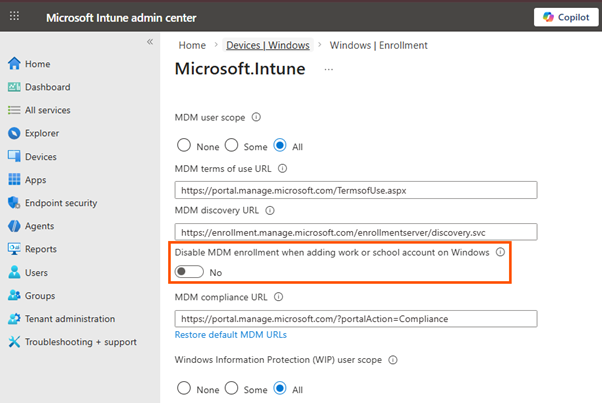
1) Sign in to the Microsoft Intune admin center.
2) Go to Devices > Enrollment.
3) Select Windows Enrollment.
4) Click on Automatic MDM Enrollment.
5) Locate the new setting: “Disable MDM enrollment when adding a work or school account on Windows.”
6) Set the toggle to Yes.
– Yes = Users can sign into apps without triggering device enrollment (Opt-in).
– No = The traditional behavior where app sign-in may trigger enrollment (Automatic).
7) Click Save.
That’s it. Once saved, the change will apply to users during their next app sign-in attempt.
This can also be changed from Graph API
PATCH https://graph.microsoft.com/beta/policies/mobileDeviceManagementPolicies/0000000a-0000-0000-c000-000000000000

Content-Type: application/json

{

  "isMdmEnrollmentDuringRegistrationDisabled": true

}
What changes for your users?
To help you visualize the impact, here’s how common scenarios change with this feature enabled:
| Scenario | Default Behavior (Without toggle) | New Opt-In Behavior (With Toggle) |
|---|---|---|
| BYOD / Personal Devices | High risk of accidental enrollment | App access without device takeover |
| Signing into Office / Teams | May initiate MDM enrollment | No MDM enrollment unless user chooses |
| Adding account in Windows Settings | MDM Enrollment | MDM enrollment (remains available) |
| Windows AutoPilot | MDM Enrollment | MDM enrollment (unaffected) |
The key takeaway? Intentional enrollment paths (like through Windows Settings or Autopilot) remain unchanged. You’re only removing the accidental trigger.
Why this is the new best practice
For most organizations, especially those with BYOD, mixed ownership, or multi-tenant access, this opt-in model is a game changer. It supports:
– Least surprise: Users get what they expect (app access), not what they don’t (managed devices);
– Explicit consent: When a device does need to be managed, the user is actively choosing that path;
– Cleaner BYOD posture: Personal devices stay personal, while corporate data can still be protected through Conditional Access and app protection policies (like MAM);
– Reduced support burden: Fewer accidental enrollments mean fewer tickets asking, “How do I undo this?”
When to stick with automatic enrollment
The default automatic enrollment isn’t going away, and it’s still the right choice for some scenarios:
– Fully corporate-owned device fleets
– Locked-down, kiosk, or dedicated devices
– Environments where every device must be managed, no exceptions
– The goal is to make that a conscious decision, not an accidental one.
Conclusion
Microsoft Intune’s new public preview toggle gives administrators the power to allow enrollment everywhere, but require intent. By making a simple configuration change, you can protect users from unintended consequences, safeguard personal devices from corporate overreach, and simplify your entire device lifecycle, all without losing any management capability. Ready to try it? Head to the Intune admin center, enable the toggle, and start treating app sign-in and device enrollment as the separate actions they were always meant to be.
